
Guide · Watch & sync
How to Connect Your Watch to 42Runs
42Runs sends your planned workouts to your watch and brings your completed runs back, so the calendar, your training load, and your zone statistics stay up to date. How you connect depends on the watch.
Open Settings → Connect Your Watch in the 42Runs app and choose the watch you actually use. Garmin, Suunto, Coros, and Amazfit connect through a free pairing service, intervals.icu, and share a single connection.
Apple Watch and Polar can connect straight to the 42Runs app.
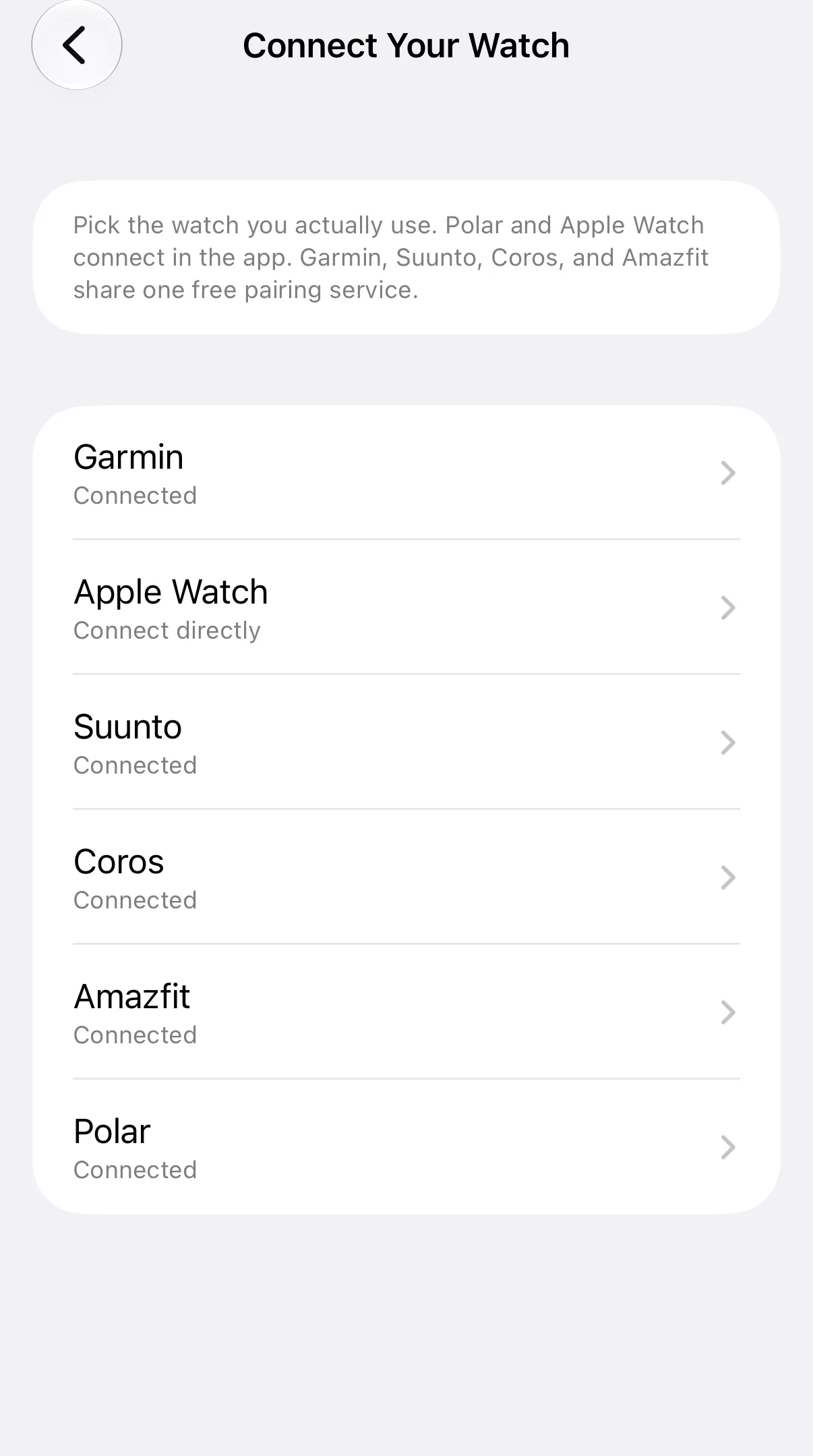
Garmin, Suunto, Coros, and Amazfit
For these four brands, 42Runs works together with intervals.icu, a free training platform that already connects to each of them. Setup has two parts: connecting 42Runs to intervals.icu, and linking your watch brand there. The app guides you through both and takes about a minute.
Part 1: Connect 42Runs to the pairing service
- Open Settings → Connect Your Watch and select your watch: Garmin, Suunto, Coros, or Amazfit.
- Tap Continue. On the next screen, tap Continue again.
- Sign in to your intervals.icu account, or create a free account on the sign-in screen if you do not have one yet.
- Approve the connection.
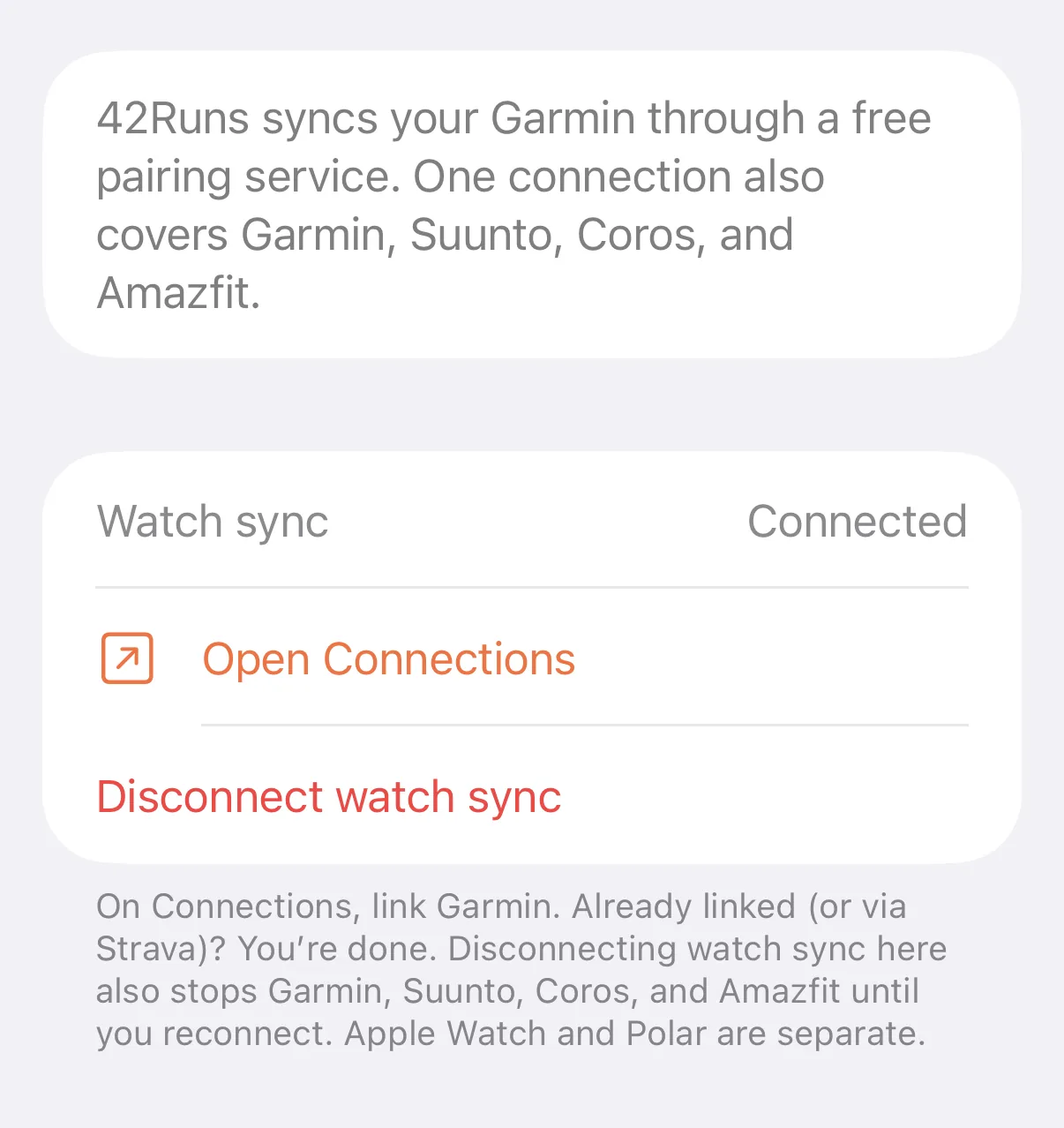
When the connection is made, the brand screen shows Connected, with Open Connections for the next step.
If signing in does not work, tap Having trouble signing in? at the bottom of that screen. You can then connect manually with your intervals.icu Athlete ID and API key, which you can find on the intervals.icu website under Settings → Developer Settings. When copying these values, make sure no spaces are included at the start or end, as this is a common cause of connection errors. Our step-by-step guide to connecting intervals.icu walks through the manual method.
Part 2: Link your watch brand
After connecting, 42Runs shows an One more step screen. Tap Open Connections to open the Connections page on intervals.icu, then:
- Choose your watch brand.
- Sign in to that watch account and approve the connection.
- Return to 42Runs and tap Done.
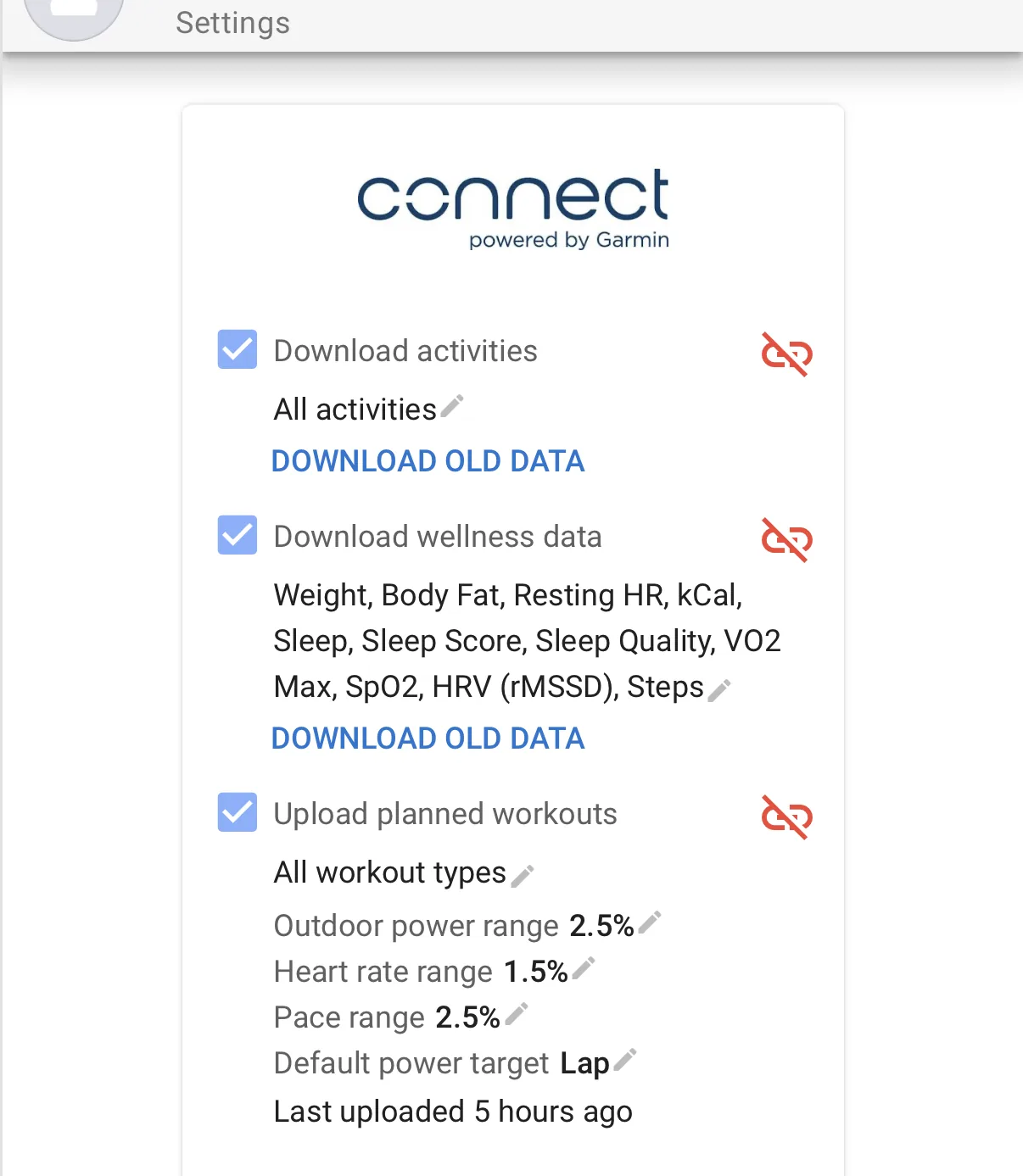
You can open the same page at any time from the brand's screen in Settings → Connect Your Watch using Open Connections.
Already use intervals.icu with your watch, for example because you connected Garmin or Strava there before? Then your watch is already linked, and you are done after Part 1.
Amazfit is listed as Amazfit (Zepp) on the Connections page: link the same Zepp account you use on your phone. Planned workouts currently reach some Amazfit models only, such as the T-Rex 3 Pro and Balance 2. Other models still send their completed activities back to 42Runs.
One connection for four brands
Garmin, Suunto, Coros, and Amazfit share the same connection. Connecting one of them is enough, and disconnecting watch sync from any of them stops all four until you reconnect. Apple Watch and Polar are separate and are not affected.
What happens once you are connected
- Workouts reach your watch. Workouts you add to the calendar are sent to your watch automatically. For a training plan, 42Runs sends the plan one week at a time, staying one week ahead of where you are, instead of loading the whole plan onto your watch at once. Later weeks follow automatically as they come up.
- Completed runs come back. After a run, the activity syncs from your watch to its own platform and then to 42Runs. It is matched to the planned workout for that day, and the workout is marked as completed.
- Your statistics update. Completed activities feed Training Load, Fitness, Fatigue, and Form, as well as personal records and zone statistics.
Syncing is not instant. A completed run first needs to reach your watch platform, then the pairing service, and then 42Runs. This usually takes a few minutes, but can occasionally take longer.
Troubleshooting
A workout does not appear on my watch. Check the sync status shown on the workout in 42Runs. If it shows as not synced, the connection may not be complete: open Settings → Connect Your Watch and check that your brand shows Connected. If it shows as synced but the workout is not on the watch, make sure your watch brand is linked on the Connections page (Part 2) and that your watch has synced with its own app recently.
The screen says “Update permissions”. Your connection is missing one permission, so your heart-rate zones from 42Runs cannot reach your watch. Tap Update permissions: this keeps your connection, plans, and history exactly as they are.
A completed run is not marked as done. This is usually a matter of timing. Make sure the activity has synced from your watch to its own app, and allow a few minutes for it to reach 42Runs.
Adding a plan does nothing. To add a training plan, 42Runs needs a watch connection that can receive workouts: the pairing service (Garmin, Suunto, Coros, or Amazfit) or Apple Watch. Polar cannot receive planned workouts yet.
Disconnecting
For Garmin, Suunto, Coros, and Amazfit, open Settings → Connect Your Watch, choose one of these brands, and tap Disconnect watch sync. This ends the link between 42Runs and the pairing service for all four brands. Your plans and history stay as they are, and your watch remains linked on the Connections page unless you remove it there as well.
Apple Watch and Polar are disconnected from their own screens in the same place.